The Gate Won’t Budge: A Screen-Side Guide to QR Codes That Refuse to Scan
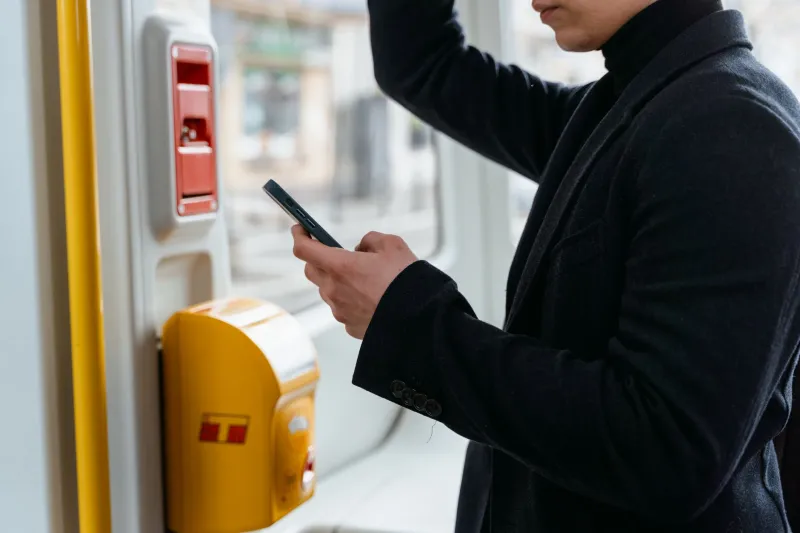
It usually happens at the worst possible moment. You are at the barrier at Leeds, or queuing at a parcel counter, or standing in the drizzle outside an academy venue. Your ticket is on your phone. The QR code looks crisp. The scanner disagrees. The gate stays shut, the queue sighs, and you start tilting the handset like you are trying to align a satellite dish.
The frustrating truth is that a QR code on a phone is not one object. It is a chain: the app that made it, the file format it was saved in, the way your display renders it, the brightness of the screen, the reflections on the glass, and finally the scanner’s camera and focus. Any weak link can turn a perfectly legible-looking square into a shrug.
The screen is not paper
A printed QR code has fixed black modules and fixed white gaps. A phone screen emits light, reflects the room, and changes brightness depending on the ambient light sensor. It may also be running at a lower brightness because you are in a dim station concourse in November, or because low-power mode has kicked in at 18%.
Barrier scanners at UK stations are often older fixed-focus imagers built for speed and rough handling, not for subtle screen rendering. They expect contrast. If your screen is dim, smeared, or angled away from the scanner, the contrast drops and the code can fail even though your eyes see it fine.
Brightness is not a personality trait
Start with the obvious: push screen brightness to maximum. Turn off auto-brightness for the moment. Check that Night Shift, True Tone or any blue-light filter is not altering the white point or contrast. These features are fine for reading at night, but they can make a white QR background look grey or warm, and some scanners are fussier than others.
Also check low-power mode. On many phones it dims the display and shortens the auto-lock timer. Neither helps when you are holding the phone under a scanner while a member of staff waits. If your phone is warm, or the battery is low, the screen may also dim itself without asking.
Scaling and anti-aliasing: the quiet killers
A QR code is a grid. When a phone displays it at anything other than its native size, the display has to resample it. Edges get anti-aliased — softened with intermediate pixels — and the sharp boundaries between black and white modules blur. At small sizes, that can be enough to confuse a scanner.
This is especially common when the ticket opens inside an email preview, a PDF viewer set to fit-to-width, or a screenshot of a screenshot. Email clients often downscale images. PDFs may render at a zoom level that looks fine to you but gives the scanner a soft, low-contrast grid.
Open the ticket in the original app where possible. If you must use a PDF, zoom in so the code fills a good portion of the screen without cropping the white border around it. That white border — the quiet zone — is part of the code. If you zoom until it disappears, you have removed the margin the scanner uses to find the code’s edges.
The camera side of the conversation
If you are scanning a code with your own phone — a parcel label, a friend’s ticket, a poster — remember that phone cameras are not scanners. They hunt for focus. They struggle with glare. They may switch to a macro or ultra-wide lens without telling you.
Hold the phone 15–25cm away, tap the code on screen to force focus, and clean the lens. A smudge on the camera is surprisingly good at turning a crisp code into a fog. If there is glare from overhead lighting, tilt the phone slightly or use your hand to shade the screen.
When a barrier or counter scanner is doing the reading, do not press the phone flat against the glass. Give it a few centimetres of space and angle the screen towards the scanner. If the scanner has a red or green aimer, use it. If the gate has a flat bed, lay the phone down rather than hovering it at an angle.
Different places, different failure modes
Train barriers are usually low, flat and impatient. Event stewards often use handheld scanners at an angle, sometimes in poor light. Parcel counters may have a scanner behind glass or a handheld unit that is passed over your phone. Each setup changes the distance, angle and reflections.
At a parcel counter, the code is often buried in an email as a small image or a PDF attachment. At a venue, the ticket may be inside an app that dims after ten seconds. At a station, the barrier may simply have a worn scanner window. The fix is often the same: maximise contrast, remove scaling, keep the quiet zone, and give the scanner a clean line of sight.
A quick checklist before you blame the ticket
- Turn brightness to maximum and disable auto-brightness temporarily.
- Turn off Night Shift, True Tone or any colour filter.
- Open the original ticket, not a screenshot of an email preview.
- Zoom to a sensible size, but keep the white border visible.
- Clean the screen and, if you are scanning, the camera lens.
- Tilt slightly to kill reflections; do not press against the scanner.
- Try a second device if you have one.
- Keep a printed copy or a booking reference as backup.
- Ask staff — many UK stations and venues can manually check a reference.
If you are designing the code
For anyone building ticket apps or parcel labels for UK users, the lessons are practical. Use a high error-correction level. Keep a generous quiet zone. Do not place the code on a busy background or invert the colours. Test on cheap phones, older phones, and phones with cracked screens. Test at 50% brightness and in a dim room. Use PNG for screen display rather than a heavily compressed JPEG, and do not rely on a screenshot being the primary path.
A QR code is not a decoration. It is a small optical data format that has to survive real screens, real scanners and real British weather. At ClearPixel, the rule is simple: if you have to squint, the scanner probably is too. Try the screen-side checks first. Then, if the gate still will not budge, you can blame the ticket with a clear conscience.