Bandwidth, Not Brawn: Why the USB-C Cable in Your Drawer Can't Do What You Think
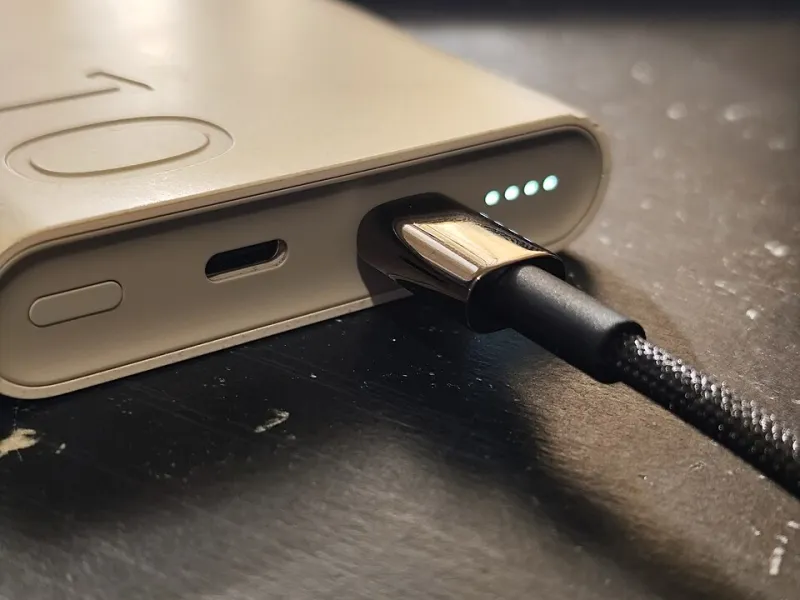
Photo: Logant547, CC BY 4.0, via Wikimedia Commons
There's a tub in your kitchen drawer — or possibly a tangle behind the telly — containing six USB-C cables. One came with a phone, one came with a monitor, one was £5 from a supermarket checkout, and two arrived with devices you no longer own. They are physically interchangeable. They are not remotely equivalent. And the one you've plugged into your display might be the reason your shiny 4K screen is behaving like a 2016 laptop.
This is the least glamorous problem in display tech, and it's the one that catches the most people out.
The connector is not the capability
USB-C describes a plug shape. That's it. The oval, the symmetry, the satisfying click — none of it promises a particular speed, a particular wattage, or any video at all.
The standard permits a cable to be built for USB 2.0 data — that's 480 Mbps, a figure that would have looked underwhelming in 2003 — as long as it handles the basics. Plenty of cables bundled with chargers, power banks and budget accessories are exactly that: little more than a pair of power wires with a token data line alongside. They will charge your laptop happily. They will not send a picture to a monitor, no matter how many settings you wiggle.
That's because DisplayPort Alt Mode, the method almost every laptop uses to push video down a USB-C port, borrows the cable's high-speed data lanes. No high-speed lanes, no video. It's not a software toggle or a driver issue. It's a missing wire.
Where the throttling happens
The frustrating middle ground is the cable that does do video, but only just.
A rough hierarchy helps here. A decent modern laptop outputting 4K at 60Hz in standard dynamic range needs somewhere around 12–13 Gbps of usable bandwidth once you account for overheads. Push to 4K at 120Hz with HDR and 10-bit colour and you're climbing toward the high twenties. A top-tier cable rated at 40 Gbps shrugs at both. A cheaper, older, or simply mislabelled cable may cap out closer to 10 Gbps — and the handshake will quietly negotiate downwards rather than announce a failure.
That's the bit people miss. Your screen doesn't flash up an error. It just drops to 4K at 30Hz, or 1440p, or switches HDR off, and you assume the monitor is mediocre. Nine times out of ten, the panel is fine and the cable is the bottleneck.
Reading the label without being taken in
In 2022 the USB-IF, the body that actually writes these specifications, renamed everything into a scheme based on speed rather than version numbers. So you'll now see packaging promising USB 5Gbps, 10Gbps, 20Gbps or 40Gbps. That's cleaner than the old "Gen 1 / Gen 2 / Gen 2×2" muddle, but only if the label is telling the truth.
The things worth looking for on the box or listing:
- A stated data rate, not just "fast charging". A cable marketed purely on watts may have no meaningful data capability.
- A stated video capability, ideally naming DisplayPort Alt Mode and a maximum resolution and refresh rate.
- A wattage ceiling — 60W, 100W, or 240W. Anything above 60W requires an electronically marked (e-marked) cable, a small chip in the connector that tells the devices what it can handle.
- A recognisable certification logo, whether that's USB-IF, Thunderbolt, or VESA for DisplayPort. Generic marketplace listings have a long history of borrowing these logos without earning them.
And a caution that applies everywhere: a cable cannot add a feature your port doesn't have. If your laptop's USB-C socket doesn't support DisplayPort Alt Mode at all, the finest cable in Christendom won't conjure a picture. Check the laptop spec first, cable second.
The half-metre problem nobody mentions
There's a physical wall here that no amount of marketing can demolish. Passive copper cables — the cheap, thin, flexible kind — start to struggle as they get longer. A 40 Gbps passive USB-C cable is realistically limited to about 0.8 metres. Push to two metres and you're generally looking at 20 Gbps or less unless the cable is active, with circuitry inside the connector to clean up the signal.
This is why the two-metre cable you bought for a tenner to reach the wall-mounted telly may be causing intermittent flicker or the occasional black frame. It's not broken. It's just being asked to do something it was never built for.
What's actually worth buying in 2026
UK pricing has settled down nicely. A certified 40 Gbps passive cable in the 0.8m range now sits somewhere around £12–£20 from the better-known accessory brands, and a reputable 10 Gbps two-metre cable can be had for under a tenner. Active 40 Gbps cables at two metres push toward £30–£45, which stings, but it's the honest price for the job.
A few practical notes for shopping here:
- Match the cable to the run. A 0.8m cable for a laptop on a desk riser; an active longer cable for anything reaching across a room.
- Buy from a seller who publishes a spec sheet. Scan, Box, Kenable, Lindy and the major accessory brands all do this. Marketplace listings with a photo of a cable and the word "universal" generally do not.
- Don't overpay for headroom you'll never use. If your monitor tops out at 4K 60Hz, a 40 Gbps cable is money spent on reassurance, not pixels. A solid 10 Gbps cable will do the job.
- Label the good ones. A strip of masking tape with "40G — monitor" on it will save you an hour of confused troubleshooting in eighteen months' time.
A ten-minute drawer audit
If you want to sort the wheat from the chaff this afternoon, start with the cables attached to things that matter. Unplug the one running to your display, plug in a known-good alternative, and see whether the resolution and refresh rate options change in your display settings. On Windows, that's Settings, then Display, then Advanced display. On a Mac, it's System Settings, then Displays, with the option key held to reveal the fuller list of modes.
If the numbers improve, you've found your culprit. If they don't, the cable is fine and the limitation lives elsewhere — in the port, the adapter, or the display itself.
Then bin the charge-only cables that have been masquerading as data cables. Not literally, obviously, but demote them to the bedside table, where their lack of ambition is a virtue. The drawer deserves better, and so does your screen.