After the Lights Go Out: The Real Overnight Cost of Monitors, TVs and Docks
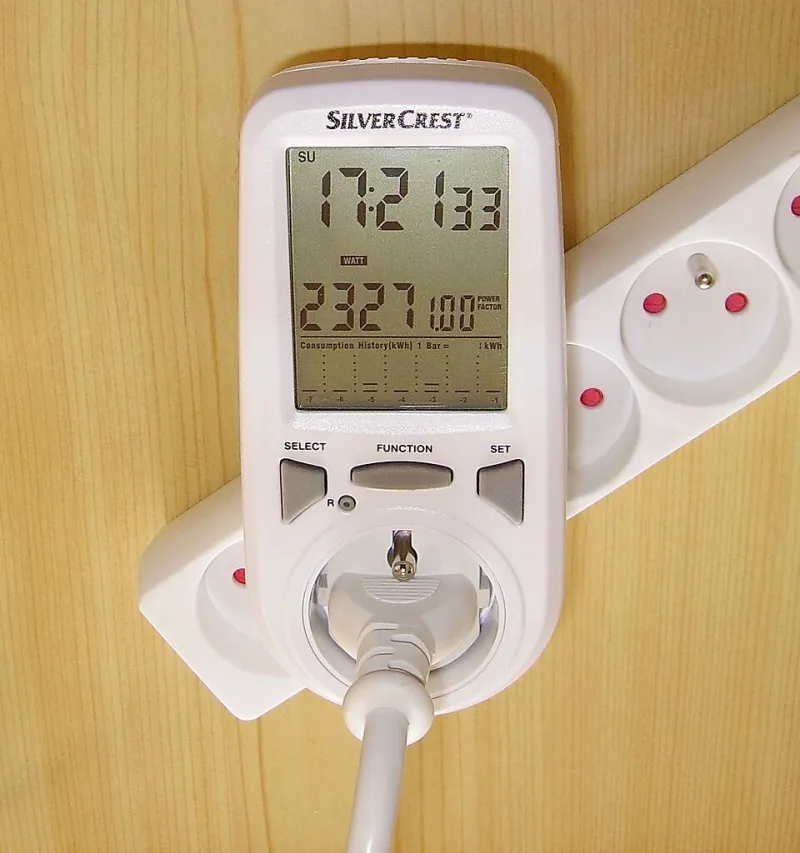
Photo: Cjp24, CC BY-SA 3.0, via Wikimedia Commons
Your monitor, TV and USB-C dock all have a dirty little secret: they are not always off when they look off. The red light, the warm power brick, the dock that still charges your phone — that’s standby. It’s tiny per hour, but it runs for thousands of hours a year. The question isn’t whether it costs anything. It’s whether the cost is worth chasing.
Start with a meter, not a hunch
You can argue about standby until the kettle boils, or you can spend about £15 on a plug-in energy meter. The kind with a screen and a couple of buttons is enough. Plug it between the wall socket and the device, leave it for a normal day, then read the energy used. Do the same overnight.
Two things matter: the wattage when the device is supposedly off, and how many hours it stays that way. A meter turns both into a number you can compare with your electricity tariff. At an illustrative 25p per kWh — adjust this to your own rate, because the Ofgem price cap moves every quarter — you can work out whether the culprit is costing you 50p a year or £50.
The three suspects in a typical UK setup
Most homes have a cluster: a desk display, a TV on the wall, a streaming box, a USB-C dock, maybe a games console. They are rarely all guilty. The trick is to measure them one at a time, because a power strip reading only tells you the total.
The monitor that never quite sleeps
A modern monitor in true standby should sit at or below 0.5W. That’s the UK ecodesign floor for ordinary standby, and it is genuinely small: about £1.10 a year at 25p per kWh if it runs 24/7. But many displays are not in true standby. They are in a quick-start or USB-charging mode, still powering a hub, still listening for a signal. That can mean 5W, 10W or more.
A 32-inch HDR monitor left fully on is a different beast. At 65W for 16 hours overnight, you’re looking at roughly 26p a night, or about £95 across a year. That’s not standby — that’s a display doing useful work for nobody. The fix is usually a five-minute settings change, not a new monitor.
The TV with a quick-start habit
Wall-mounted TVs are notorious for hiding their true draw. A set with “quick start” or “network standby” enabled may pull 10–15W so it can wake instantly, fetch updates and listen for voice commands. At 15W for 20 hours a day, that’s about 7.5p a night — £27 a year. Switch quick start off and the same TV may drop to 0.5W, costing pennies.
The catch is convenience. You may wait a few seconds longer for the smart interface to appear. That’s the trade: roughly £25 a year for instant gratification. Some households will happily pay it. Others will wonder why they ever enabled it.
The dock that keeps charging
USB-C docks are easy to overlook because they’re small and often warm. A dock with power delivery, Ethernet and display outputs can draw 5–10W even when the laptop is unplugged, especially if it’s still feeding a monitor or charging a phone. At 6W for 16 hours, that’s around 2.4p a night — £9 a year. Not dramatic, but not nothing.
Phone chargers left in the wall are the classic red herring. A good modern charger with no phone attached draws well under 0.1W. That’s about 22p a year. Unplugging it daily is fiddling, not saving.
What the numbers look like
Here’s a rough comparison using 25p per kWh. Your own meter readings will vary, which is the point.
| Device | Typical draw | Hours a day | Cost per night | Cost per year | |---|---:|---:---:|---:| | Monitor in true standby | 0.5W | 16 | under 0.1p | about £0.73 | | Monitor in quick-start mode | 8W | 16 | about 3.2p | about £12 | | Monitor left on | 65W | 16 | about 26p | about £95 | | TV in quick start | 15W | 20 | about 7.5p | about £27 | | TV in true standby | 0.5W | 20 | under 0.1p | about £0.91 | | USB-C dock, idle | 6W | 16 | about 2.4p | about £9 | | Phone charger, no phone | 0.1W | 24 | under 0.1p | about £0.22 |
Why ‘off’ is a spectrum
The UK’s ecodesign rules set limits, but they don’t make every device identical. Ordinary standby is capped at 0.5W. Networked standby — the mode that keeps a device connected to your Wi-Fi — can be higher, often up to 2W. Quick-start modes and always-on USB charging can push a device beyond those figures because, technically, it isn’t in standby at all.
That’s why a TV can be “off” and still draw 15W. It’s also why a monitor can be “off” and still run a USB hub. The label on the box won’t tell you the whole story. The meter will.
Where smart plugs earn their keep — and where they don’t
A £10 smart plug that kills power to a TV and soundbar at midnight can save £20–£30 a year if those devices are quick-start guzzlers. Payback is a few months. That’s a sensible buy.
A smart plug on a 0.5W monitor in true standby is theatre. You’ll save about 70p a year and add another app to your life. The same goes for unplugging chargers, or switching off a router at night if it means your smart home falls over and your broadband reconnects slowly in the morning.
If you do use a smart plug, put the whole desk or TV cluster on one switched strip instead of five individual plugs. Fewer points of failure, less cable spaghetti, and one schedule to manage.
A routine that actually works
First, meter each suspect for 24 hours. Second, disable quick start and always-on USB charging where the device allows it, then meter again. Third, put the remaining real loads on a switched extension lead or a smart plug with a schedule. Fourth, leave the 0.5W devices alone.
Don’t unplug things daily unless you enjoy wear on sockets and cable ends. Do check settings after firmware updates, because manufacturers sometimes switch convenience features back on. And do treat the £15 meter as a one-off tool: once you know your numbers, you can stop guessing.
The overnight drain is real, but it’s rarely mysterious. A bright monitor left on is the expensive mistake. A TV in quick start is the convenient one. A dock and a charger are usually small change. Measure first, then fix what’s worth fixing.